We understand that emergencies happen. In these situations, it can be critical to ensure that your cardholder has funds available on their True Link Visa® Prepaid Card ready to be used.
Our general timeline for funding availability is one business day after the transfer is initiated, but for emergency situations, we also offer the ability to process same-day funding. This feature allows funds to be made available within minutes of the transfer being initiated. Below is more information on how this feature works.
Please note that this feature is currently only available to a subset of customers who have a long-standing relationship with True Link. If a transfer is scheduled and you do not see the option to process the transfer as an Emergency Transfer, please email our Support Team at support@truelinkfinancial.com, and we’d be happy to review this with you.
To process an Emergency Transfer, please follow these instructions:
Emergency Fund from the Online Dashboard
- Schedule a one-time transfer for the amount you need to make available quickly. Please note that the Emergency Transfer option will only be available for transfers scheduled in the next 7 days and may not be available for large transfers.
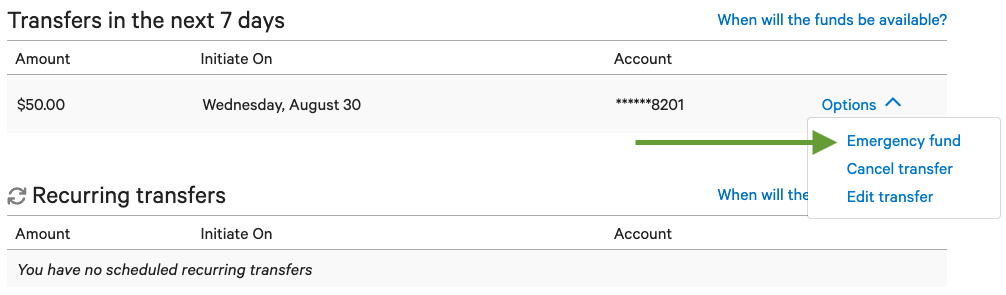
- Once scheduled, find the transfer in the “Transfers in the next 7 days” section of the Funding tab.
- Click the “Options” button to the right of the transfer and click the “Emergency fund” option.
- A pop-up will appear asking you to confirm that you’d like to make the funds available, and the timeline in which you can expect the funds. Once ready, click “Confirm.”
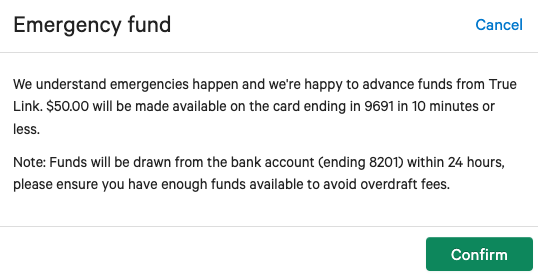
- After clicking the “Confirm” button, the funds typically will be available in ten minutes or less!
Emergency Fund from the Mobile App
Download the Mobile App from the Google Play Store or the Apple App Store. After logging in to the True Link Mobile App:
- Tap on the "Fund Visa card" button under the card balance
- Enter the amount you’d like to transfer and click “Review”
- Tap “Submit”
- From the success screen, tap “Done”
- Scroll down to the Upcoming Transfers section and click on “View and Manage Transfers.” Find and tap the transfer you would like to Emergency Fund from the “Transfers in the next 7 days” section
- Tap “Emergency Fund
”
- A pop-up window will appear, sharing that the funds will be made available in ten minutes or less. Tap “Submit”
If you have any questions about this feature or need assistance with making larger transfers available for same-day use, please reach out to our Support Team at support@truelinkfinancial.com.
If you are a new customer scheduling one of your first transfers, please see our article titled Getting Started - How to Expedite Funding Availability for additional information.